
Message
A Message asset is a text-based message meant to be shared on a display.
To create a message asset:
Click the user icon in the top right and click Admin > Resources.
Click the Assets option on the left navigation column.
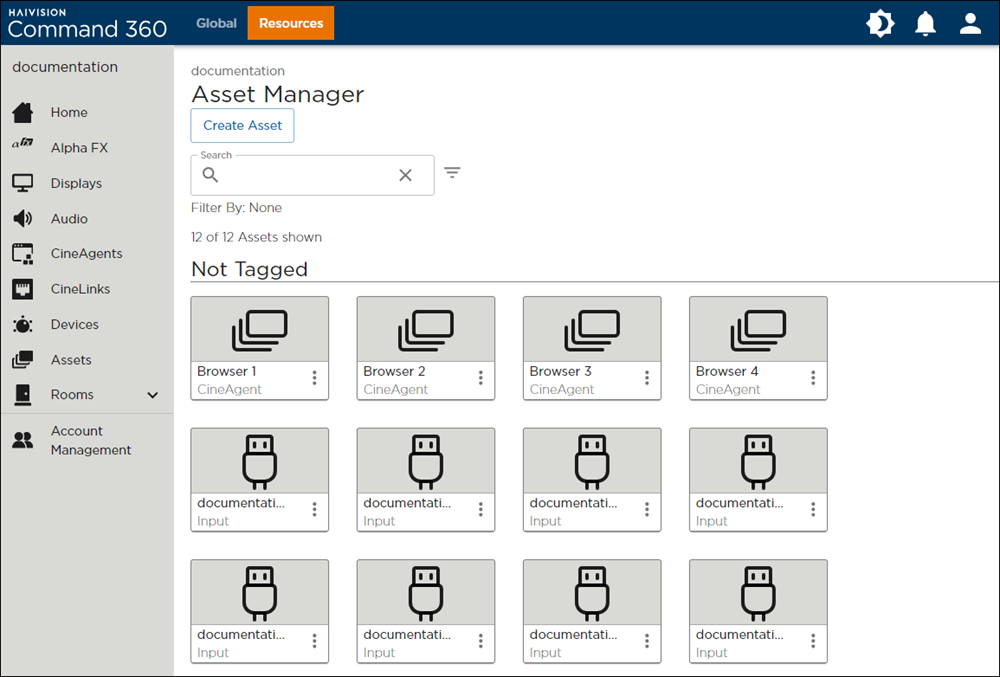
Click the Create Asset button in the Assets interface.
Select Message from the Create Asset panel, then click Next.
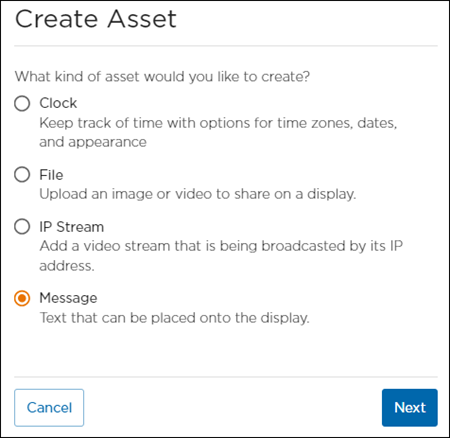
Create Asset Panel
Enter a unique Asset Name.
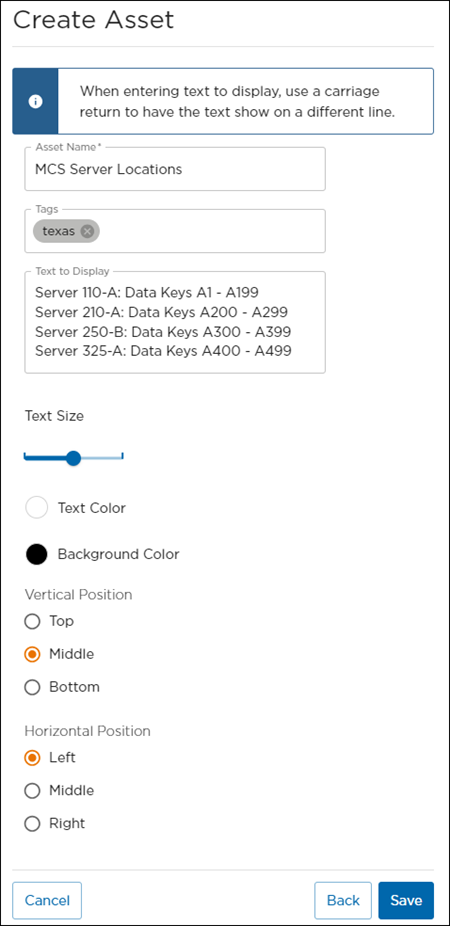
Message Asset Details
Add Tags if desired.
Enter Text to Display. Use a carriage return to create line breaks.
Use the Text Size slide to adjust size.
Choose a Text Color.
Choose a Background Color.
Choose the Vertical and Horizontal Positions of text placement.
When finished making changes, click Save.
The new message asset is now available for use.
Add Message to a Room
Assets must be assigned to a room to be viewed on a video wall. Refer to Managing Room Resources for further instruction.
Add Message to an Activity
Assets must be assigned to a specific activity within a room to be viewed on the video wall. Refer to Activity Resources for further instruction.