
File
A File asset is an image or video file uploaded to Command 360 to be shared on a display.
To create a file asset:
- Click the user icon in the top right and click Admin > Resources.
- Click the Assets option on the left navigation column.
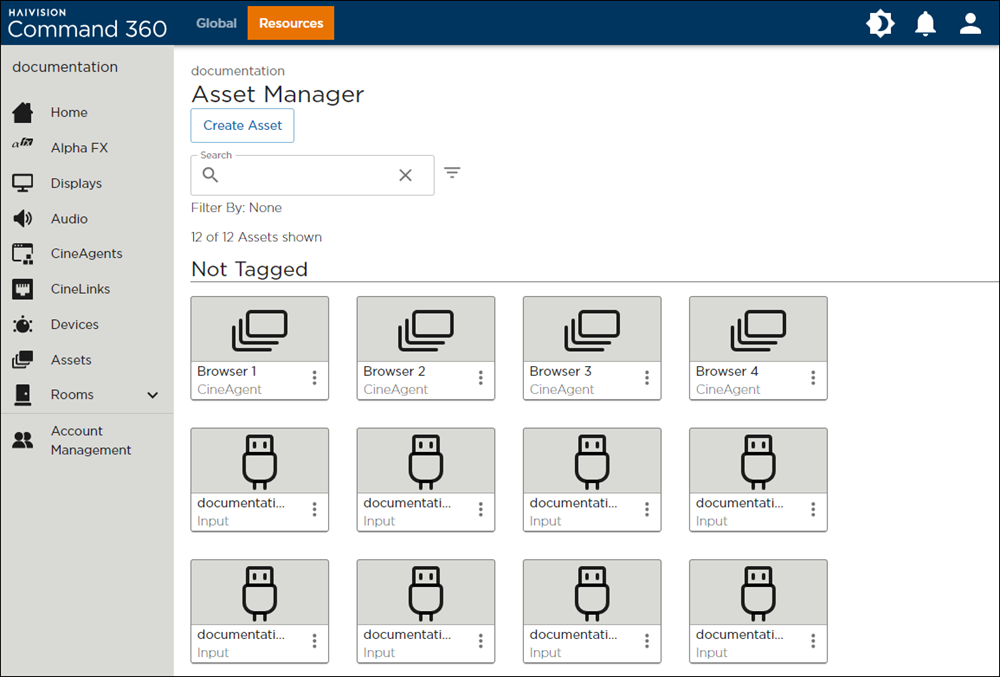
- Click the Create Asset button in the Assets interface.
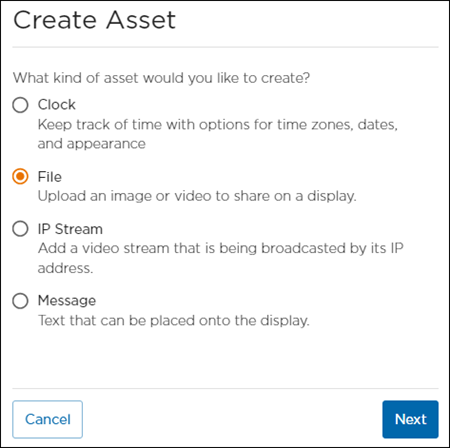
- Select File and click Next.
- Click Select File to launch file explorer; select image or video file and click Open. The selected file name appears next to the Select File button and auto-populates the Asset Name field.
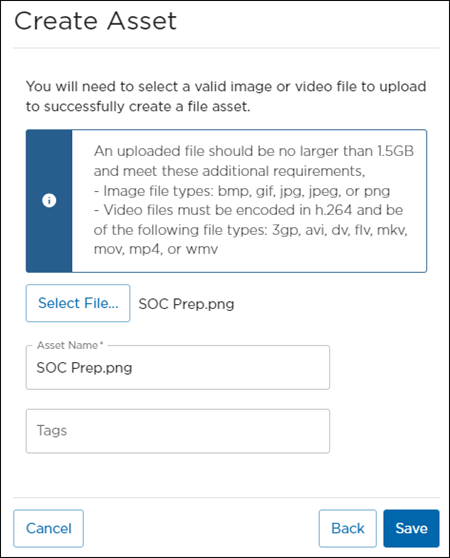
- Accept the default file name, or enter a unique Asset Name.
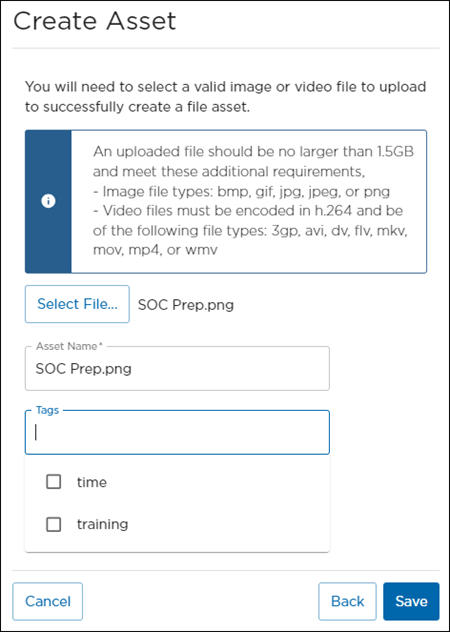
- Add tags if desired, then click Save. Tags previously added to other assets appear in a checklist below the Tags entry box.
The asset is now available for use.
Add Image or Video File to a Room
Assets must be assigned to a room to be viewed on a video wall. Refer to Managing Room Resources for further instruction.
Add Image or Video File to an Activity
Assets must be assigned to a Display to be viewed on a video wall. Refer to Activity Resources for further instruction.