
Editing Accounts or Resetting User Passwords
To edit an existing user account:
Click the user icon in the top right and click Admin > Resources.
Click Account Management on the left navigation column.
Click the Accounts tab.
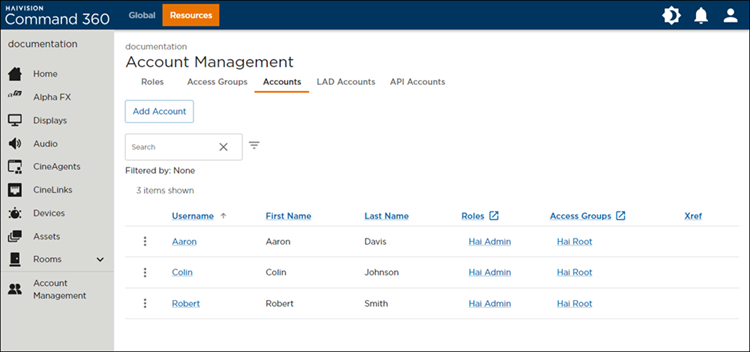
Accounts Tab on the Account Management Screen
Click the
 icon to the left of the desired account.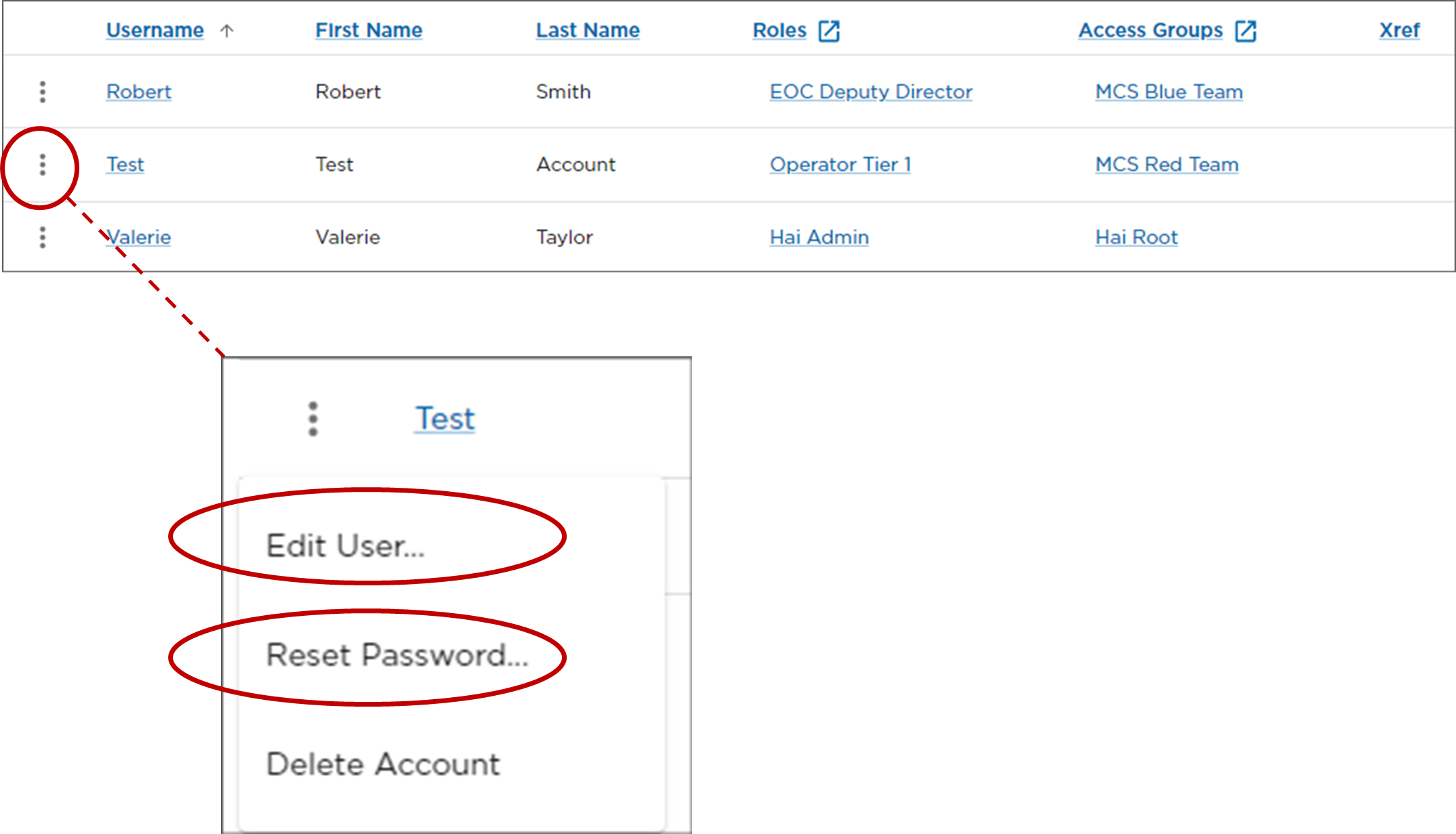
Account Edit and Reset Password Options
Click Edit User to launch the account Username, First Name, Last Name, and Xref input screen, as well as the Roles and Access Groups assignment menus.
To reset a user password, click the Reset Password option. Enter the new password and enter it again to confirm, then click Save Password.
When finished making changes, click Save Account.
Related Topic