
Device Options
Clicking the  icon on the far left of a device listing produces a pop-up menu for various device options. This topic lists the tasks associated with each option.
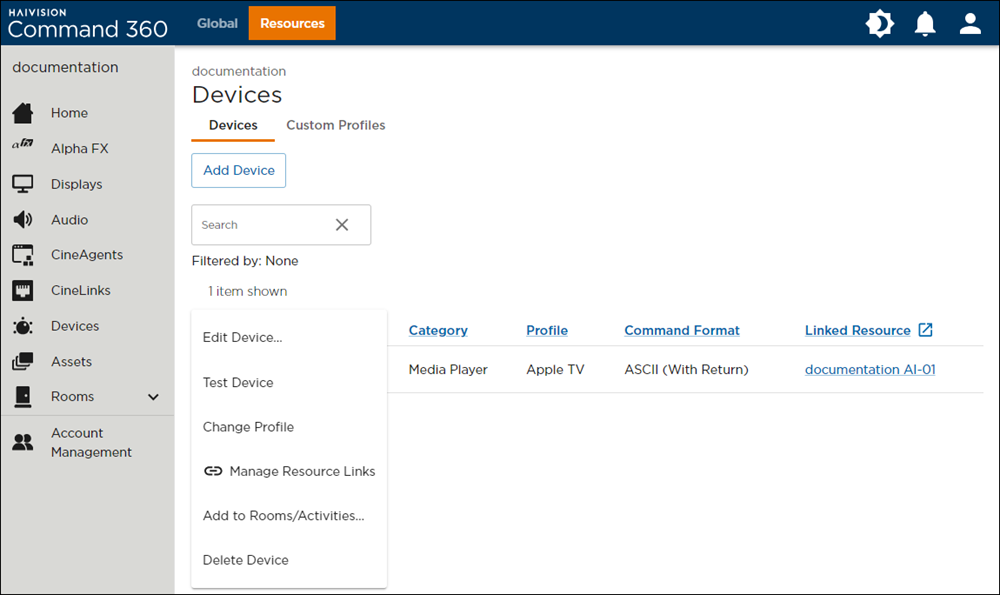
Device Options Menu
Edit Device
To edit device details:
On the Devices page, click the
icon on the far left of a device listing.Click Edit Device.
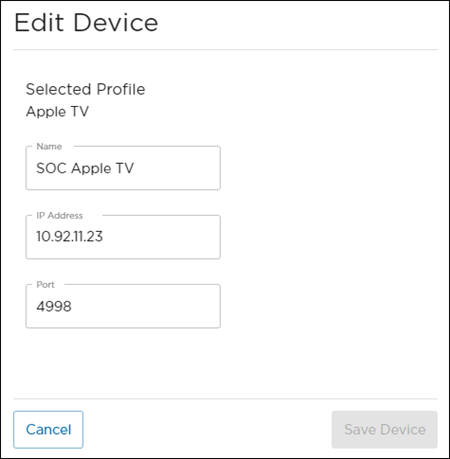
Device Info Fields
From here, you can edit:
Name
IP Address
Port
Click Save Device.
Test Device
The Test Device feature allows you to control a device that is in the same physical room or whose interface is accessible in some capacity. The device controls do not provide any feedback in the Command 360 interface.
To control a device:
On the Devices page, click the
icon on the far left of a device listing.Click Test Device. A control panel opens on the right.
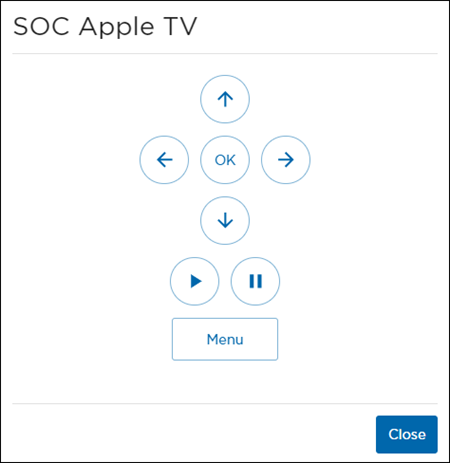
Test Device Panel
Use the controls to interact with the device.
When you are finished, click Close.
Change Profile
Changing the profile for a device allows you to easily swap control UIs and actions available for it.
To change a device's profile:
On the Devices page, click the
icon on the far left of a device listing.Click Change Profile.
Select a new Profile from the drop-down menu.
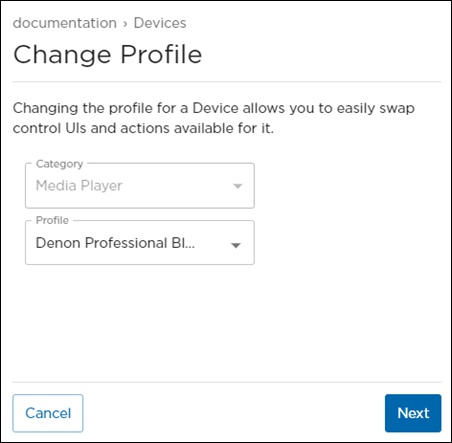
Change Profile Panel
Click Next.
If needed, edit the device's Name, IP Address, and Port.
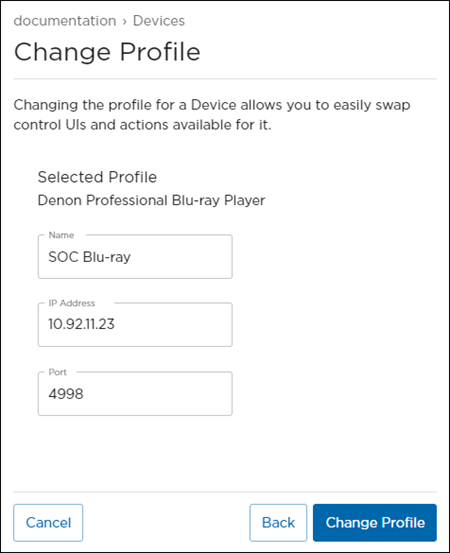
Change Profile Fields
Click Change Profile.
Manage Resource Links
To link an asset to a device:
On the Devices page, click the
icon on the far left of a device listingClick Manage Resource Links.
Select an Asset from the drop-down menu.
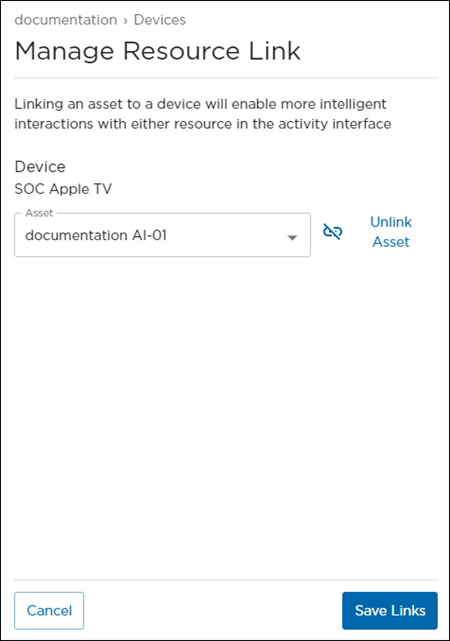
Manage Resource Links Panel
Click Save Links.
Add to Rooms/Activities
To add a device to a room or activity:
On the Devices page, click the
icon on the far left of a device listing.Click Add to Rooms/Activities.
Click the checkbox next to each room or activity to which you are adding the device.
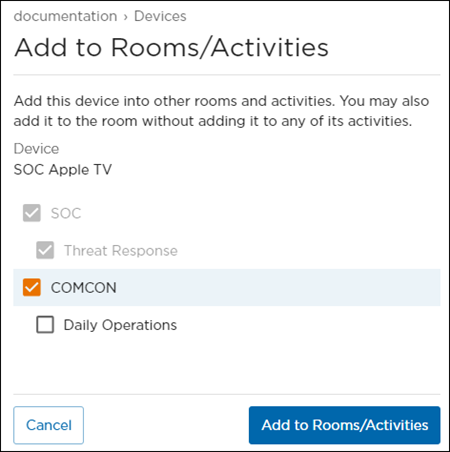
Edit Rooms/Activities Panel
Click Add to Rooms/Activities.
Delete Device
To delete a device:
On the Devices page, click the
icon on the far left of the device listing.Click Delete Device. A confirmation prompt appears.
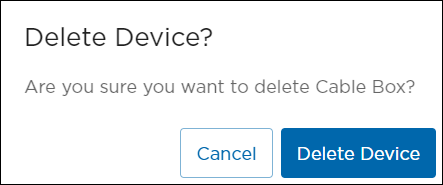
Delete Device Confirmation Prompt
Click Delete Device.