
Annotations
Annotating video wall content enhances collaboration and decision making by allowing operators to emphasize real-time content more efficiently than simply zooming in or using laser pointers. Annotations visually draw viewers' attention to the most important information, whether as a single item or several key points.
Enabling Annotations
To annotate video wall content:
Enter a room and activity to launch the activity interface.
Click any asset on the canvas to reveal the orange border with corner handles and the
 icon
icon  in the top right corner.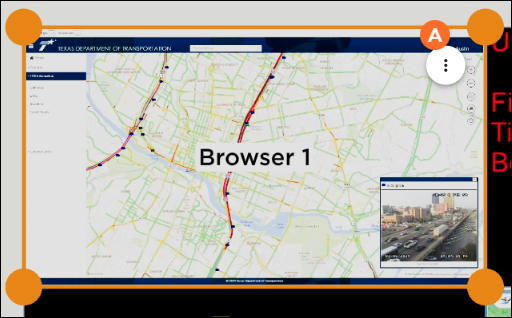
Click the
icon and select Modify Asset  from the pop-up menu.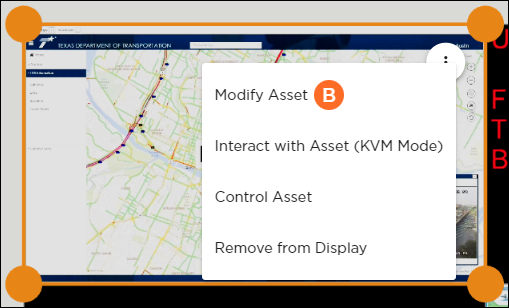
The asset expands to fill the display.
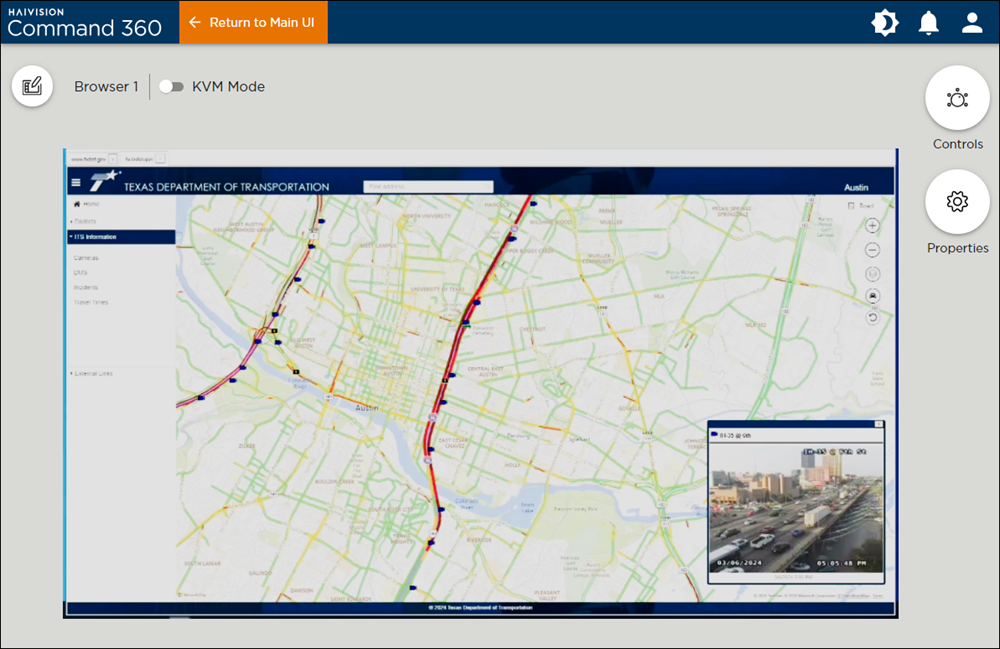
Click the Annotation icon
 directly left of the asset name, next to the KVM Mode switch.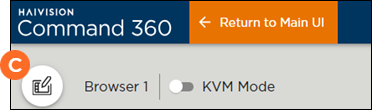
Click the Tool icon
 and decide whether to use a drawing pen, rectangular border, or arrow pointer to emphasize content. Make Tool, Size, and Color selections, then click and drag directly on the asset until markup appears as desired.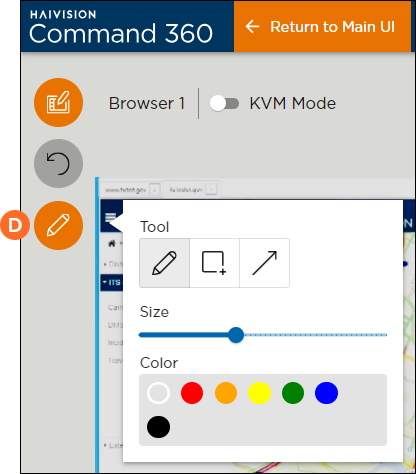
Click the Undo icon
 to remove annotations as necessary.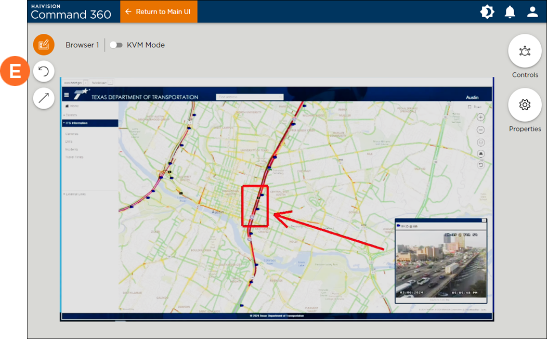
Click Return to Main UI to see the annotated asset as part of the full display. The drawings remain on the asset whether in the zoomed or normal views, but are not saved in the layout.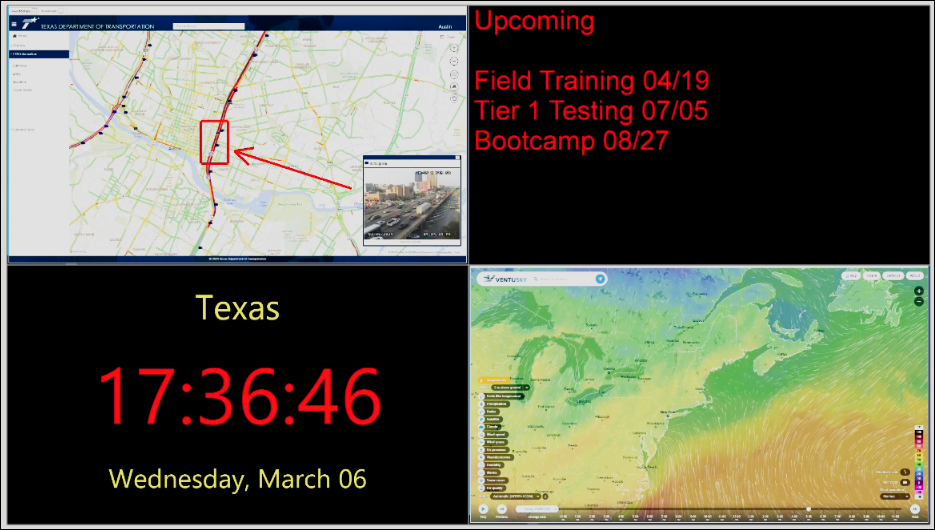
Related Topics