
Configuring a Video Return Live Profile
To configure a video return Live Profile from the Unit Panel or from the Web Interface, see the tabs below.
From the Home menu, tap
 >
>  >
>  .
.Tap the Profile Name field and enter the new profile name.
Tap
 to confirm the new profile name.
Tap the Application field and choose Video Return.
Tap the End-to-End Latency field to adjust the latency.
Tap the Bitrate field to enter a new bitrate.
In the Audio settings, tap the Channel Layout field and choose between: 1x Mono or 1x Stereo.
Tap
 and select ADVANCED+.
Tap the toggle button to enable Optimization for LiveGuest.
Tap the toggle button to enable Manual Resolution.
Tap the Resolution field to display the resolution list.
Select the resolution you want to apply.
Tap
 to save the new Video Return Live Profile settings.

Note
When configured in multi-encoding mode, up to two interlaced video sources can be encoded.
In the sidebar, click Streaming > Live.
Click the Add Profile button. The Add Live Profile dialog appears:
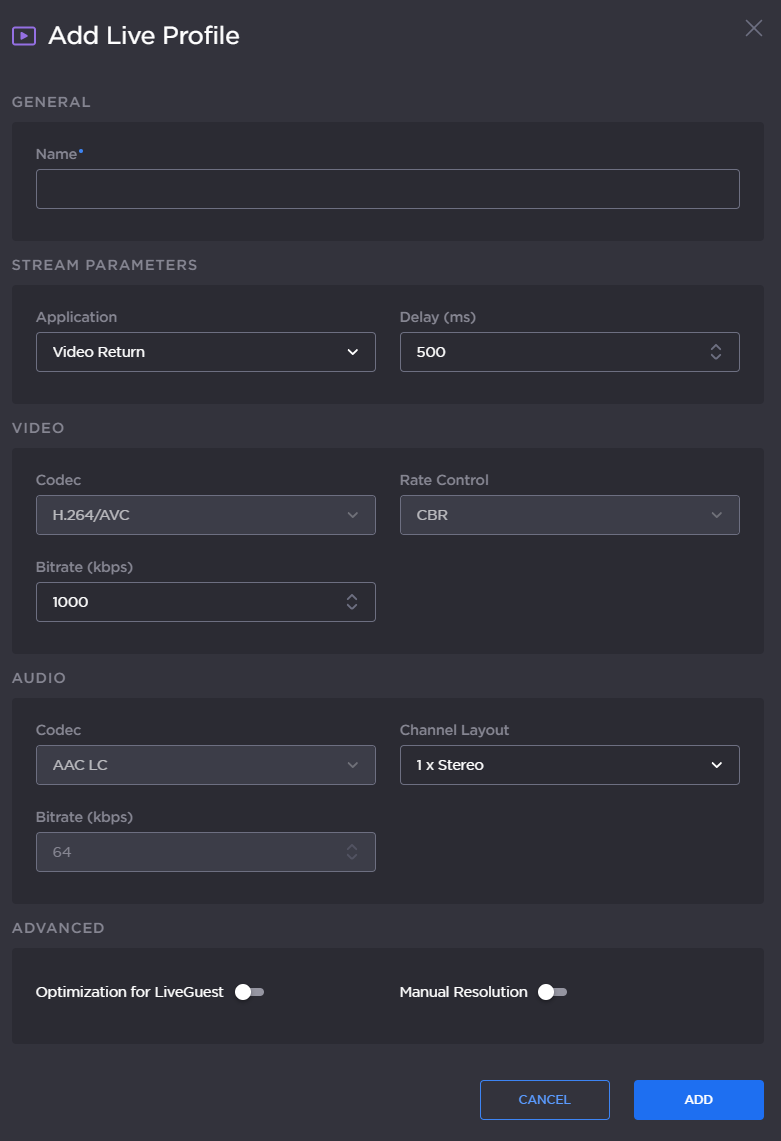
Enter a profile name in the Profile Name field.
Set the Application to Video Return.
Set a Delay between 500 and 10000 ms.
In the Video settings, set a bitrate between 200 and 6000 kbps.
In the Audio settings, select a Channel Layout between: 1x Mono or 1x Stereo.
Click the toggle button to enable Optimization for LiveGuest.
Click the toggle button to enable Manual Resolution.
Note
When configured in multi-encoding mode, up to two interlaced video sources can be encoded.
Click the Add button.