
Configuring the Time and Date
To configure the time and date from the Unit Panel or from the Web Interface, see the tabs below.
From the Home menu, tap
 >
>  > General > Date.
(Optional) Enable the Use NTP toggle and enter an NTP Server address in the field below.

Tip
After entering the address of the NTP server you wish to use, tap the Test button to ensure you can connect to it.
Set the date and time and tap
 to confirm.

Note
The Date and Time format is set to: YYYY-MM-DD HH:MM,
Set Date & Time Manually
In the sidebar, click Settings > System.
Ensure the Use NTP toggle is disabled.

Disable NTP
Click within the Manually Set Date & Time field.
A calendar and clock dialog appears for you to select the date and time: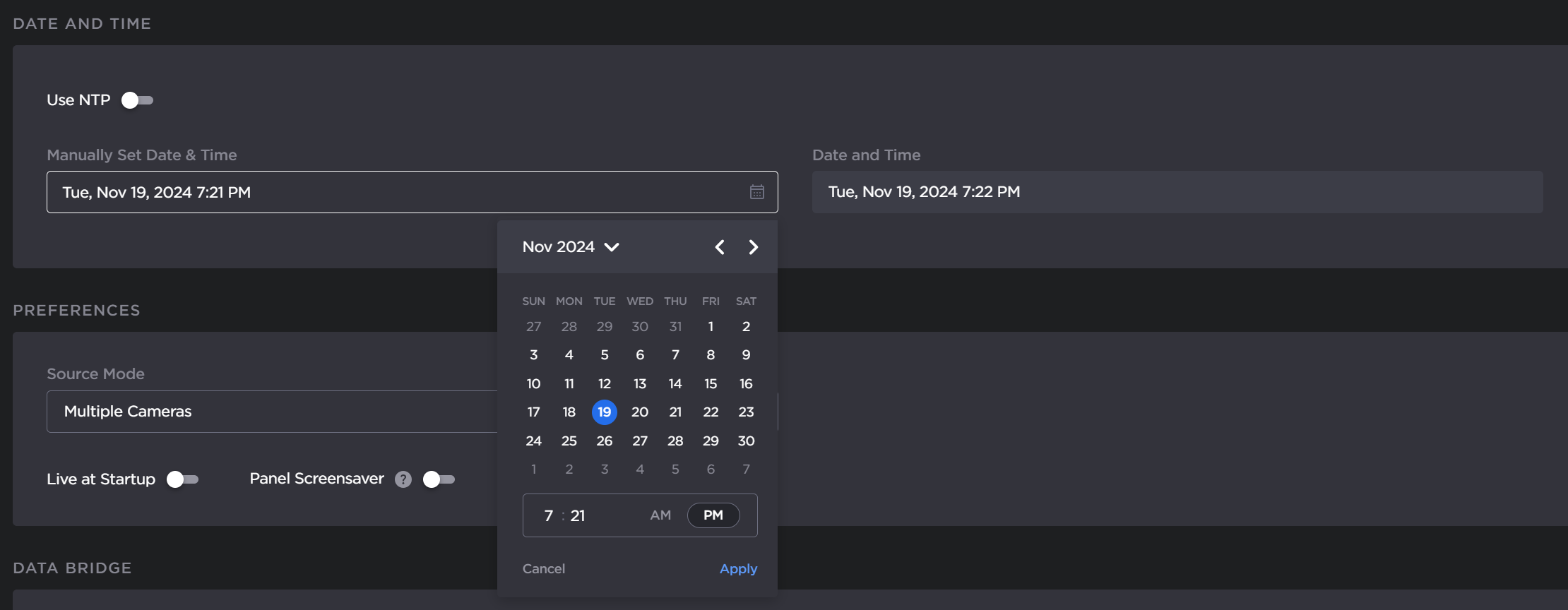
Calendar and Clock
Click Apply in the dialog.
Click the Apply button.
Set Date & Time via NTP Server
In the sidebar, click Settings > System.
Click the Use NTP toggle button to enable NTP server.
Enter a valid NTP Server address in the available field.
Tip
After entering the address you wish to use, click the Test button to ensure you can connect to it.

Enable NTP
Select the desired Time Zone from the drop-down list.
Click the Apply button.
Note
The device reboots after you change the NTP settings.